Video to 3D
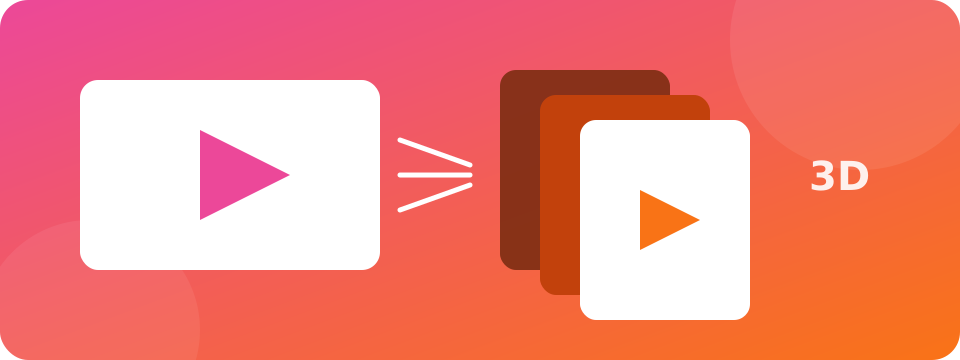
Turn a video into an interactive 3D depth video with AI.
How to use Video to 3D
follow along with the steps below
 1
Upload a video clip (MP4, WebM or MOV) and choose how many seconds and how much depth detail to convert.
 2
AI estimates depth for every sampled frame. Then play the clip in 3D, drag to look around and tune depth strength.
 3
Record the 3D result as a WebM video with sound, switch to red/cyan or VR-box mode, or save the current frame as a GLB/STL model.


About Video to 3D
Video to 3D adds real depth to an ordinary video. A depth-estimation AI (Depth Anything V2) analyses frames of your clip, and the viewer lifts every pixel toward or away from the camera in real time while the video plays. You get a moving 3D scene you can orbit, a red/cyan anaglyph or side-by-side VR view, and a recorded 3D clip with your original audio. Any single frame can be exported as a 3D model.
Common uses
- Create eye-catching 3D parallax clips for Reels, Shorts and TikTok
- Make red/cyan 3D or VR-box videos from normal footage
- Turn a favourite video moment into a 3D-printable or Blender-ready model
- Preview depth for compositing and visual effects
Tips for best results
- Start with a short clip (3–6 seconds) to see the result quickly
- Use 4 frames per second for a good balance of speed and smoothness
- Steady shots with a clear foreground and background work best
- Lower Depth strength if edges look stretched, or raise Remove stretched edges
Features
- AI depth for every sampled frame with temporal stabilising to reduce flicker
- Real-time 3D playback with a depth-displaced video surface
- Record the 3D view as WebM with the original audio
- Red/cyan anaglyph and side-by-side VR box modes
- Export the current frame as GLB or STL
- Free, no sign-up, videos never leave your device
Practical notes
Converting runs on your device, so longer clips and higher detail take more time. Depth is analysed a few times per second and blended between samples to keep playback smooth. Like all single-camera depth estimation, it is an approximation, not a measured scan.
More free tools
 Video to GIFTurn a short part of a video into an animated GIF.
 Video Frame ExtractorSave any frame of a video as a PNG picture.
 Video CompressorShrink video file size right in your browser.
 Video TrimmerTrim a video down to the part you need.
 Video Quality EnhancerUpscale and sharpen videos at a high bitrate so they stay crisp after YouTube upload.
Frequently Asked Questions about Video to 3D
Quick answers about using Video to 3D.
What does Video to 3D do?
It estimates depth for your video with AI and plays it as a moving 3D scene you can orbit, view with 3D glasses, and record.
How long a video can I convert?
You can convert the first 3, 6, 10, 15 or 30 seconds. Longer clips need more time and memory on your device.
Can I download the 3D video?
Yes. Use Record 3D video to save a WebM file of the 3D view (with the original audio where your browser allows it). You can also save a still frame as GLB or STL.
Will red/cyan glasses work?
Yes. Choose Red / Cyan glasses in the 3D glasses mode menu and wear standard anaglyph glasses. Side-by-side mode is for VR box viewers.
Is my video uploaded?
No. Frames are processed in your browser. Only the AI model file is downloaded the first time and cached afterwards.
Why is conversion slow on my phone?
AI depth is heavy. Devices with WebGPU are fastest. Try a shorter clip, 2 frames per second, or switch off AI depth to use the quick mode.
Related tools
Video to GIFTurn a short part of a video into an animated GIF.Video Frame ExtractorSave any frame of a video as a PNG picture.Video CompressorShrink video file size right in your browser.Video TrimmerTrim a video down to the part you need.Video Quality EnhancerUpscale and sharpen videos at a high bitrate so they stay crisp after YouTube upload.Why people choose Supreme Pro